
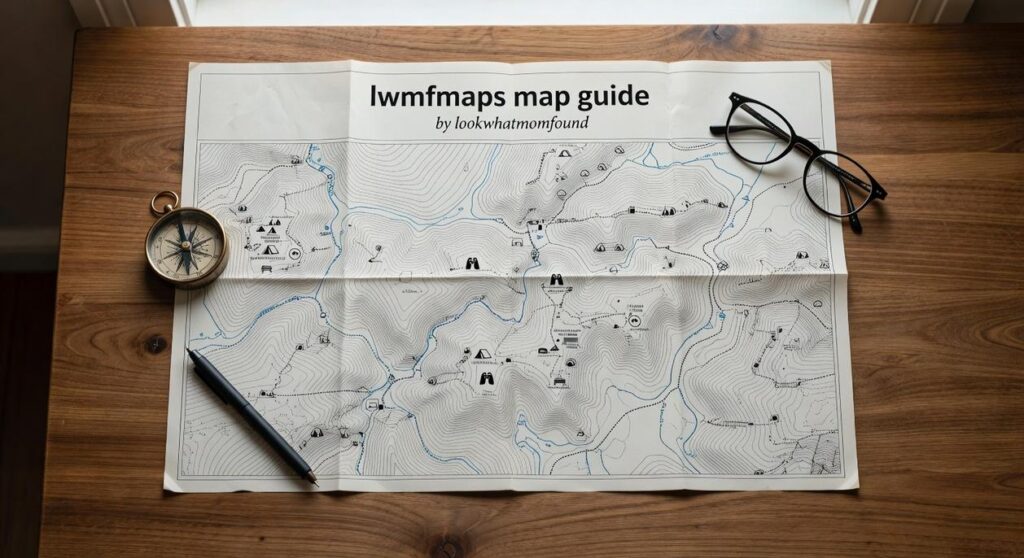
I’ve used dozens of travel apps over the years and they all do one thing well. But that means I’m switching between five different apps just to plan a single trip.
You’re probably tired of it too. One app for maps, another for recommendations, a third for saving places, and something else for building your itinerary.
LWMF Maps changes that.
This guide walks you through everything the app can do. Not just the basics like finding your way around. I’m talking about the features that turn it into your complete travel planning tool.
I’ll show you how to use interactive maps that actually help you explore. How to access curated travel guides written by people who’ve been there. How to plan detailed trips without jumping between apps.
You’ll also learn about offline access (because WiFi isn’t always reliable when you’re traveling) and other features most people don’t know exist.
This is the official LWMF Maps map guide by lookwhatmomfound. Everything here comes straight from the source with step-by-step instructions you can follow right now.
By the end, you’ll know how to use one app for everything instead of juggling your whole phone just to figure out where to eat lunch.
Getting Started: Your First Steps with the App
You might be wondering if you really need another app on your phone.
I hear that a lot. People tell me they already have Google Maps or Apple Maps and those work just fine.
And you know what? They’re not wrong. Those apps will get you from point A to point B.
But here’s what they won’t do. They won’t show you the hidden coffee shop locals actually go to. Or that trail everyone misses because it’s not marked on standard maps.
That’s where lwmfmaps the map guide comes in.
Downloading and Installation
Getting started takes about two minutes.
Head to the iOS App Store if you’re on iPhone. Android users can grab it from Google Play Store. Search for LWMF Maps and hit install.
The app is free to download. No credit card required upfront.
Creating Your Account
Once it’s installed, you’ll see a simple sign-up screen.
You can use your email or connect through Google or Apple. I usually recommend email because it gives you more control (but that’s just me).
The real benefit of creating an account? Your saved places and itineraries sync across all your devices. Start planning on your laptop at home and pull it up on your phone when you’re actually traveling.
Understanding the Interface
When you first open the app, you’ll land on the main map view.
It looks familiar because we didn’t try to reinvent the wheel. The map works like you’d expect. Pinch to zoom. Tap to explore.
At the top, there’s a search bar. Type in any destination and you’ll get results that go beyond the usual tourist spots.
Bottom of the screen, you’ll see icons for guides and saved trips. Tap guides to browse curated collections for different cities. Saved trips is where your planned adventures live.
That’s it. No complicated menus or hidden features you need a tutorial to find.
Core Feature: Mastering Interactive Maps & Navigation
I pulled up my phone in downtown Barcelona last summer.
No signal. No data. Just me and a dead end street that looked nothing like the photo I’d saved.
That’s when I learned something most people figure out the hard way. Having a map app on your phone means nothing if you don’t know how to actually use it.
Finding What You Need
Type “coffee” into the search bar and you’ll get 47 results within two blocks. Not helpful.
Here’s what works better. Search for specific addresses when you have them. Use full landmark names (not just “that museum”). And when you’re exploring? Try category searches like “vegetarian restaurants” or “art galleries” instead of generic terms. To enhance your gaming adventures, utilizing tools like Lwmfmaps can significantly improve your exploration by allowing you to search for specific landmarks and categories, rather than relying on vague terms. To enhance your gaming adventures, utilizing tools like Lwmfmaps can significantly improve your exploration by allowing you to search for specific landmarks and categories tailored to your interests.
The lwmfmaps map guide by lookwhatmomfound breaks down search strategies that actually save time. Because wandering around lost isn’t an adventure. It’s just annoying.
Customizing Your View
Most people never switch off the default map view.
They’re missing out. Satellite view shows you what buildings actually look like before you arrive. Terrain view reveals that “short walk” is actually straight uphill. Transit view displays bus and train lines so you can plan routes that make sense.
I switch between views constantly. Satellite when I’m trying to find a specific entrance. Terrain when I’m hiking. Transit when I’m in a new city and need to figure out how locals get around.
Turn-by-Turn Directions
The navigation system works for driving, walking, and public transit. You probably knew that.
What you might not know is that some apps now suggest scenic routes for road trips. Instead of the fastest highway route, you get coastal roads or mountain passes that are worth the extra 20 minutes.
I used this feature driving through Oregon last fall. The app routed me through three small towns I would’ve missed entirely on the interstate. Found the best fish tacos I’ve had in years (completely unplanned).
The Power of Offline Maps
This is the feature that saves you when everything else fails.
Download maps for entire cities or regions before you leave home. Then you have full navigation without burning through international data or hunting for WiFi.
I downloaded maps for all of Portugal before a two-week trip. Used them every single day. Never once worried about signal or roaming charges.
Here’s how you do it. Open your map app and search for the city or region. Look for the download option (usually in settings or by tapping the location name). Select the area you want. Hit download.
The file sizes can be large. A major city might take 200-300MB. Do this on WiFi before you travel.
Some people say you don’t need offline maps because WiFi is everywhere now. Sure, until you’re hiking in the Alps or driving through rural Spain where cell towers are few and far between.
I’ve watched tourists stand on street corners refreshing their phones, hoping for signal. Meanwhile I’m already walking to my destination because I planned ahead.
Check out lwmfmaps for more detailed walkthroughs on each of these features. The difference between knowing your tools and just having them installed is bigger than you think.
Beyond Navigation: Discovering Curated Guides and Cultural Insights
You open a travel app expecting basic directions.
What you actually need is someone who’s been there to tell you what’s worth your time.
I built LWMF Maps because I got tired of showing up in new places with no real context. Sure, I could find my way to the main square. But I had no idea where locals actually ate or what I was looking at when I got there.
Most travel apps give you pins on a map. That’s it.
Here’s what I do differently.
When you open the map guide lwmfmaps from lookwhatmomfound, you’re not just getting coordinates. You’re getting guides I’ve put together after actually visiting these places or working with people who live there. Instructions for Map Guide Lwmfmaps builds on exactly what I am describing here.
Start by browsing the destination library. Pick your city and you’ll see a full breakdown of what matters. Not just the famous stuff everyone photographs. The restaurant where taxi drivers eat lunch. The viewpoint tourists walk right past. To uncover hidden gems and local favorites that go beyond the typical tourist spots, be sure to explore The Map Guide Lwmfmaps From Lookwhatmomfound, which offers a comprehensive breakdown of each city’s unique offerings. For an authentic exploration of your chosen city, turn to The Map Guide Lwmfmaps From Lookwhatmomfound, which reveals not only the iconic landmarks but also those hidden gems and local favorites that truly capture the essence of the destination.
I remember being in Lisbon and asking a local where to get dinner. He pointed me down an alley I would’ve never found on my own. That’s the kind of intel I try to pack into every guide.
You can filter by what you’re into. Adventure travel if you want to hike or dive. Culinary tours if you’re there for the food (honestly, same). Family-friendly spots if you’re traveling with kids who get bored easily.
Each guide includes cultural notes too. Basic phrases that actually help. Customs you should know before you accidentally offend someone. Historical context so you understand why that building matters.
Pro tip: Read the cultural section before you land. I’ve saved myself from awkward moments more times than I can count just by knowing how tipping works or when shops close for siesta.
The goal is simple. Give you enough information to feel confident exploring without making you read a textbook.
From Idea to Itinerary: Advanced Trip Planning Tools
You know what drives me crazy about trip planning?
I’ll spend hours researching the perfect spots. I’ll bookmark restaurants. Save museum links. Screenshot viewpoints from Instagram.
Then when I actually arrive? I can’t find half of them. Or I realize that cafe I wanted to try is 45 minutes from everything else I planned.
It’s frustrating as hell.
Most travel apps don’t help either. They’re either too simple (just a list of places) or so complicated you need a tutorial just to save a location.
Here’s what I’ve learned works better.
Creating Custom Lists
I start by dumping everything into lists. Not one giant list. Separate ones for different trips or themes.
When I find a restaurant worth visiting, it goes straight into my list for that city. Same with museums and viewpoints. The lwmfmaps map guide by lookwhatmomfound lets me organize these without losing track of what’s what.
Takes maybe 30 seconds per place.
Building Your Daily Itinerary
This is where most people mess up. They save 47 places and think they’ll figure it out later. This connects directly to what I discuss in The Map Guide Lwmfmaps From Lookwhatmomfound.
You won’t.
I take those saved spots and drag them into actual days. Morning, afternoon, evening. Then I check the travel time between each one (because that “quick walk” is usually 25 minutes uphill).
If two places are an hour apart? One of them moves to a different day.
Sharing and Collaboration
Traveling with someone else means they have opinions too. Shocking, I know.
Instead of texting screenshots back and forth, I just share the whole itinerary. They can see what I’m thinking. Add their own spots. Comment if they hate something.
Way easier than the alternative.
Integrated Packing and Prep
I used to forget stuff constantly. Adapters. The right shoes. Sunscreen.
Now I keep packing checklists right next to my itineraries. When I’m planning what to do, I’m also noting what to bring. One place for everything. As I meticulously organize my gaming adventures, I rely on Lwmfmaps the Map Guide to ensure I have everything I need for each journey, seamlessly combining my packing checklists with my travel itineraries. As I meticulously organize my gaming adventures, I rely on Lwmfmaps the Map Guide to ensure I have everything I need for each journey, seamlessly combining my packing checklists with my itineraries for a flawless experience.
Sounds simple because it is.
Your Next Adventure is a Tap Away
You now have everything you need to plan and navigate your trips with the LWMF Maps app.
No more juggling browser tabs or scribbling notes on random pieces of paper. No more wondering if you missed something important.
The lwmfmaps map guide by lookwhatmomfound brings it all together in one place. You get expert guides, mapping tools, and itinerary builders that actually work the way you travel.
I built this because I was tired of the chaos that came with planning adventures. You shouldn’t need a spreadsheet and five different apps just to organize a trip.
Here’s what to do right now: Open the app and pick a destination that’s been on your mind. Start exploring one of our guides. Add a few spots to your itinerary and see how it feels.
The trip you’ve been dreaming about isn’t going to plan itself.
Your next great adventure starts with that first tap.
 Ask Zayric Tornhaven how they got into cultural insights and experiences and you'll probably get a longer answer than you expected. The short version: Zayric started doing it, got genuinely hooked, and at some point realized they had accumulated enough hard-won knowledge that it would be a waste not to share it. So they started writing.
What makes Zayric worth reading is that they skips the obvious stuff. Nobody needs another surface-level take on Cultural Insights and Experiences, Travel Guides and Tips, Adventure Travel Ideas. What readers actually want is the nuance — the part that only becomes clear after you've made a few mistakes and figured out why. That's the territory Zayric operates in. The writing is direct, occasionally blunt, and always built around what's actually true rather than what sounds good in an article. They has little patience for filler, which means they's pieces tend to be denser with real information than the average post on the same subject.
Zayric doesn't write to impress anyone. They writes because they has things to say that they genuinely thinks people should hear. That motivation — basic as it sounds — produces something noticeably different from content written for clicks or word count. Readers pick up on it. The comments on Zayric's work tend to reflect that.
Ask Zayric Tornhaven how they got into cultural insights and experiences and you'll probably get a longer answer than you expected. The short version: Zayric started doing it, got genuinely hooked, and at some point realized they had accumulated enough hard-won knowledge that it would be a waste not to share it. So they started writing.
What makes Zayric worth reading is that they skips the obvious stuff. Nobody needs another surface-level take on Cultural Insights and Experiences, Travel Guides and Tips, Adventure Travel Ideas. What readers actually want is the nuance — the part that only becomes clear after you've made a few mistakes and figured out why. That's the territory Zayric operates in. The writing is direct, occasionally blunt, and always built around what's actually true rather than what sounds good in an article. They has little patience for filler, which means they's pieces tend to be denser with real information than the average post on the same subject.
Zayric doesn't write to impress anyone. They writes because they has things to say that they genuinely thinks people should hear. That motivation — basic as it sounds — produces something noticeably different from content written for clicks or word count. Readers pick up on it. The comments on Zayric's work tend to reflect that.